In the bustling digital world, where everything from high-stakes gaming to critical professional design hinges on seamless visual output, effective Graphics Card & Display Driver Management isn't just a technical chore—it's the bedrock of a smooth, responsive, and secure computing experience. Think of your graphics card as the artist and its driver as the interpreter, translating complex digital instructions into the vibrant pixels you see on your screen. When that interpreter is out of date, inefficient, or buggy, your entire system suffers.
This guide isn't about jargon; it's about empowering you to take control of your visual computing, ensuring your hardware performs at its absolute best. We'll demystify the process, from understanding why these updates matter to walking you through the precise steps for managing drivers on both Windows and macOS, all while sidestepping common pitfalls.
At a Glance: Key Takeaways for Smarter Driver Management
- Why Bother? Regular driver updates fix bugs, boost performance (especially for games), enable new features, enhance stability, and apply crucial security patches.
- Windows Has Options: You can update via Windows Update for convenience, Device Manager for manual control, or brand-specific software (NVIDIA, AMD, Intel) for the latest optimizations.
- Mac Keeps It Simple: macOS handles all graphics driver updates automatically through its standard system software updates. No separate steps needed.
- Always Go Official: Download drivers only from your hardware manufacturer’s official website or their dedicated software.
- Don't Fix What Isn't Broken (Mostly): While regular updates are good, if your system is perfectly stable and performing well, you don't always need to rush the absolute latest beta driver.
- Backup is Your Friend: Always create a system restore point before a major driver update, just in case something goes awry.
The Unseen Powerhouse: Why Your Graphics Drivers Demand Attention
It’s easy to overlook something you can't physically touch, but graphics drivers are the unsung heroes of your computer's visual prowess. These small software packets facilitate the crucial communication between your operating system, games, and applications, and your graphics processing unit (GPU). When they're operating in harmony, your screen lights up with incredible detail, fluid animations, and lightning-fast responsiveness.
But a neglected driver can quickly turn that symphony into a cacophony of stutters, crashes, and visual glitches. Consider the myriad benefits of keeping your graphics drivers in top shape:
- Unlock Peak Performance: Game developers and GPU manufacturers constantly optimize their software. Updated drivers often translate directly into higher frame rates, smoother gameplay, and better overall responsiveness in demanding applications.
- Squash Annoying Bugs: Is your favorite game crashing mysteriously? Are applications displaying visual artifacts? Many software problems, graphical errors, and even system instability can be traced back to outdated or corrupted drivers. Updates are frequently released specifically to iron out these kinks.
- Embrace New Technologies: Cutting-edge gaming features like Ray Tracing, DLSS, FSR, or new professional rendering techniques often require the latest driver versions to function correctly or at all. Staying current means you're always ready for what's next.
- Enhance User Experience & Compatibility: Beyond raw performance, updated drivers ensure your system plays nicely with new monitors, VR headsets, and other peripherals, providing a more stable and enjoyable experience across the board.
- Bolster Security: Like any piece of software, drivers can have vulnerabilities. Manufacturers regularly issue updates that include critical security patches, protecting your system from potential exploits.
- Prevent Catastrophic Failures: From minor graphical oddities to more severe issues like system crashes or the dreaded laptop green screen, keeping drivers current is a key preventative measure. It ensures components communicate effectively, reducing the likelihood of critical errors and potentially extending your hardware's lifespan by maintaining optimal operating conditions.
This isn't just for gamers. Video editors, graphic designers, CAD engineers, and even casual users browsing the web benefit from the stability and efficiency that well-managed drivers provide. Think of it as a tune-up for your car – it might run without it for a while, but it'll run a whole lot better and safer with regular maintenance.
The Anatomy of a Graphics Driver: A Quick Explainer
At its core, a graphics driver is a specific type of software that enables your operating system (Windows, macOS) to communicate with your graphics hardware (the GPU inside your graphics card or integrated into your processor). Without this intermediary, your OS wouldn't know how to instruct the GPU to draw images, render videos, or process complex visual data.
Manufacturers like NVIDIA, AMD, and Intel develop these drivers. They are designed to be highly optimized for specific GPU architectures and to comply with evolving industry standards (like DirectX or Vulkan for gaming). Each new driver version often includes performance tweaks, bug fixes, and support for new games or software applications, ensuring your hardware remains relevant and performs optimally with the latest titles and tools.
When to Update Your Graphics Drivers: Timelines & Triggers
While the "always update" mantra isn't strictly necessary for every minor release, a proactive approach to driver management is smart. Here’s when you should definitely consider an update:
- New Game Releases: If you're planning to play a major new game, check for a "Game Ready" driver (NVIDIA) or a "Recommended" driver (AMD) release around its launch. These are specifically optimized for the new title.
- New Software or OS Versions: When you install a significant operating system update (e.g., Windows 10 to Windows 11, or a new macOS version) or upgrade professional software, new drivers can ensure compatibility and leverage new features.
- Experiencing Performance Issues: Notice frame drops, stuttering, or visual glitches where there weren't any before? A driver update is often the first and simplest troubleshooting step.
- System Instability or Crashes: If your computer starts crashing, freezing, or displaying error messages, especially during graphically intensive tasks, outdated or corrupted drivers are a prime suspect.
- Security Alerts: Occasionally, a driver vulnerability might be discovered. Security-focused updates are crucial and should be installed promptly.
- Just Because (Regular Checks): Even if everything seems fine, it's a good practice to check for updates every 1-3 months. You might discover performance improvements or new features you didn't even know you were missing.
Navigating the Update Process: Your Comprehensive Guide
The method for updating your graphics drivers depends primarily on your operating system and the brand of your graphics card. Let’s break it down.
On Windows: Your Three Primary Paths
Windows offers flexibility, from fully automatic to highly manual. Choosing the right path depends on your comfort level and desired control.
1. The Automatic Route: Windows Update
This is the easiest and often safest method for general users. Windows Update delivers drivers that have been tested and approved by Microsoft, ensuring a high level of stability. However, these aren't always the absolute latest versions with cutting-edge performance optimizations.
How to Update via Windows Update:
- Open Windows Update: Click the Windows Start button (bottom-left corner). Type
updateinto the search bar and select "Check for updates" from the results. This will open the Windows Update settings menu. - Initiate Scan & Download: Windows will typically check for updates automatically. If it finds any, it will list them. Click "Download and Install" or "Install Now" if updates, including graphics drivers, are available.
- Restart Your System: After installation, Windows will often prompt you to "Restart Now." It's crucial to restart to finalize the driver installation.
- Optimize for Latest Updates (Windows 11): In Windows 11's Update settings, toggle on "Get the latest updates as soon as they’re available" to ensure you receive updates more promptly.
- Enable Automatic Updates (Windows 10): For Windows 10, navigate to Settings > Update & Security > Windows Update. Ensure automatic updates are enabled to prevent missing important driver releases.
This method is ideal for those who prefer a hands-off approach and prioritize stability over being on the bleeding edge of performance.
2. The Hands-On Approach: Device Manager
Device Manager provides a more direct way to interact with your system's hardware drivers. It's useful for targeted updates, reinstallations, or when other methods aren't working.
How to Update via Device Manager:
- Open Device Manager: Right-click the Windows Start menu (or press
Windows key + X) and select "Device Manager" from the context menu. - Locate Display Adapters: In the Device Manager window, expand the "Display adapters" section. You'll see your graphics card(s) listed here (e.g., NVIDIA GeForce RTX 3080, AMD Radeon RX 6700 XT, Intel Iris Xe Graphics).
- Initiate Driver Update: Right-click on your graphics driver and select "Update Driver."
- Search Automatically: Choose "Search automatically for drivers." Windows will then attempt to find and install the best available driver from its local database or through Windows Update online.
- Browse for Downloaded Drivers: If you've already downloaded a specific driver from your GPU manufacturer's website (recommended for the latest versions), select "Browse my computer for drivers." Then, click "Browse," navigate to and select the folder containing your downloaded drivers, and click "OK." Follow the on-screen prompts to complete the installation.
- Reinstallation (Troubleshooting): If you suspect a driver is corrupted or causing issues, you can perform a clean reinstallation through Device Manager. Right-click the driver, select "Uninstall Device" (ensure you do not check the box to "Delete the driver software for this device" unless you specifically want to remove it entirely and install a fresh one). After uninstalling, restart your computer. Windows will typically detect the missing driver upon startup and automatically search for and reinstall a compatible version.
Device Manager offers a good balance between automation and manual control, particularly when you need to direct Windows to a specific driver file.
3. The Manufacturer's Way: Brand-Specific Software
For the latest features, performance optimizations, and the most control over your graphics experience, using your graphics card manufacturer's dedicated software is almost always the best choice. These tools provide access to "Game Ready" or "Recommended" drivers as soon as they're released.
For NVIDIA Graphics Cards:
- Software: NVIDIA GeForce Experience
- How to Update:
- Open GeForce Experience: Launch the NVIDIA GeForce Experience application. If you don't have it, download it from the official NVIDIA website and log in or create an account.
- Navigate to Drivers Tab: Click the "Drivers" tab located at the top of the application window.
- Check for Updates: Click "Check for Updates" in the upper-right corner. The software will scan for available new drivers.
- Download Driver: If an update is available, you'll see a "Download" button next to it. Click it to start the download.
- Install Driver: Once downloaded, you'll typically have two options:
- Express Installation: This is the recommended and simplest option, automatically installing the new driver and all necessary components.
- Custom Installation: This allows you to select specific components to install and also offers the option to perform a "Clean Installation," which removes old driver files before installing new ones – often a good practice for troubleshooting.
- Complete Installation: Follow any on-screen prompts. Your screen may flicker or go black briefly during installation. Click "Close" once the update is complete. A system restart is often recommended, even if not explicitly prompted.
For AMD Graphics Cards:
- Software: AMD Software: Adrenalin Edition or AMD auto-detect and install tool
- How to Update:
- Use Auto-Detect Tool (Initial/Fresh Install): If you're starting fresh or having trouble, download and run the AMD auto-detect and install tool from the official AMD website. This tool will scan your system, identify your AMD hardware, and recommend the appropriate drivers.
- Launch AMD Software: Alternatively, if you already have AMD Software: Adrenalin Edition installed, open it (it might launch automatically, or you can find it via the Start menu by typing "AMD").
- Check for Updates: Within the Adrenalin Edition software, look for a "Check for Updates" button or a notification in the upper-right corner or the "Home" tab.
- Select Driver Type: AMD typically offers "Recommended" (stable, well-tested) and "Optional" (latest features, sometimes less stable) drivers. Choose "Recommended" for most users. "PRO" drivers are available for commercial/workstation GPUs.
- Install Driver: The application will guide you through the installation process. It may ask you to confirm which chipset drivers (if applicable) you want to install; AMD generally recommends leaving all checked unless you have a specific reason not to. Click "Install" to proceed.
- Restart: A system restart is almost always required after an AMD driver update.
For Intel Graphics Cards:
- Software: Intel Driver & Support Assistant
- How to Update:
- Download & Install Assistant: Get the Intel Driver & Support Assistant from the official Intel website and install it.
- Open Assistant: Launch the Assistant. It will automatically scan your system for Intel hardware and display available updates (including graphics drivers) either within the application, as a notification, or by opening a web browser page.
- Download Drivers: Click "Download All" (or select specific drivers) for the latest available drivers.
- Install Drivers: Once downloaded, click "Install All" (or individually install) to begin the installation process. Follow any on-screen prompts.
- Restart: As with other manufacturers, a restart is often necessary to complete the Intel graphics driver update.
Using brand-specific software ensures you get drivers fully optimized for your hardware, offering the best performance and compatibility.
On macOS: The Simplicity of System Updates
Apple takes a different, more integrated approach. Graphics drivers on Mac are not typically updated independently. Instead, they are bundled directly into macOS system software updates. This means there's no separate utility or manual driver download required for your Mac's graphics.
How to Update Graphics Drivers on macOS:
- Open System Settings/Preferences: Click the Apple icon in the upper-left menu bar.
- For newer macOS versions (e.g., Ventura and later): Select "System Settings."
- For older macOS versions: Select "System Preferences."
- Navigate to Software Update:
- For newer macOS versions: In "System Settings," click "General" in the left menu, then "Software Update" on the right.
- For older macOS versions: In "System Preferences," click the "Software Update" icon directly.
- Check for Updates: Your Mac will automatically check for available macOS updates.
- Update Now: If an update is found, click "Update Now" or "Upgrade Now" to begin downloading and installing the system software. This process will include any necessary graphics driver updates.
- Restart: Your Mac will restart multiple times during a major macOS update. Ensure you save all your work beforehand.
This integrated approach makes driver management on macOS incredibly simple, virtually eliminating the need for users to worry about individual driver files.
Before You Update: Essential Best Practices
A little preparation can save a lot of headaches. Before you embark on any driver update, especially a major one:
- Create a System Restore Point (Windows): This is your ultimate safety net. If an update goes wrong, you can revert your system to a previous working state. Search for "Create a restore point" in the Windows search bar, open System Properties, and follow the prompts.
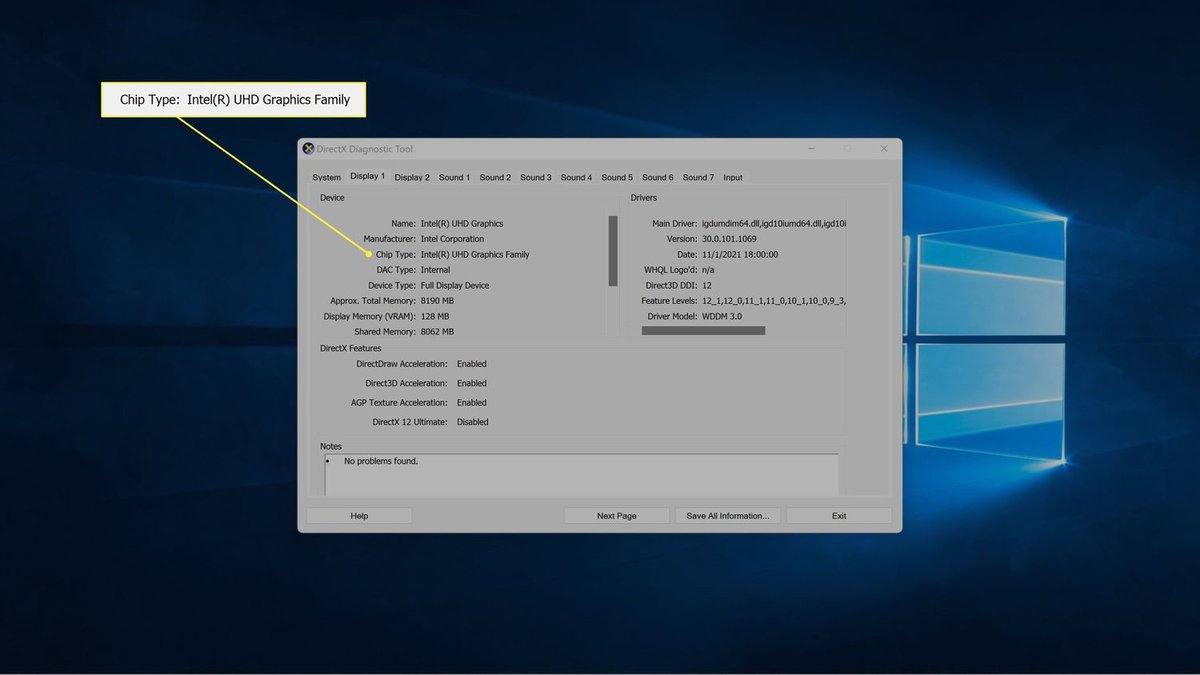
- Identify Your Current Driver Version: Knowing what you have helps you confirm the update was successful and provides a baseline for troubleshooting. You can find this in your brand-specific software (GeForce Experience, Adrenalin Edition) or in Device Manager (right-click your display adapter, select "Properties," then the "Driver" tab).
- Download from Official Sources ONLY: Never download drivers from unofficial third-party websites. Stick to NVIDIA.com, AMD.com, Intel.com, or directly through their official software. Unofficial drivers can contain malware or cause serious system instability.
- Close Unnecessary Applications: To prevent conflicts, close all open applications, especially games or graphically intensive software, before starting a driver installation.
- Save Your Work: While driver updates are usually seamless, a system crash during an update is rare but possible. Always save and close any unsaved work.
Troubleshooting Common Driver Issues
Even with the best intentions, things can sometimes go sideways. Here are common issues and how to address them:
- Installation Failed:
- Check logs: Brand-specific software often provides an installation log that can offer clues.
- Disable antivirus: Temporarily disable your antivirus software, as it can sometimes interfere. Re-enable it immediately after the update.
- Run as administrator: Right-click the installer executable and choose "Run as administrator."
- Clean Installation: Use the "Custom Installation" option in brand software to perform a clean install, or consider a dedicated tool like Display Driver Uninstaller (DDU) (use with caution and only if you know what you're doing) to thoroughly remove old drivers before attempting to install new ones.
- Black Screen or Resolution Issues Post-Update:
- Wait a moment: Sometimes the screen goes blank during installation as the display adapter resets. Give it a minute or two.
- Reboot: A simple restart can often resolve temporary display glitches.
- Enter Safe Mode (Windows): If your screen remains black or shows an unusable resolution, restart your PC into Safe Mode. From Safe Mode, you can uninstall the problematic driver in Device Manager and try reinstalling an older, stable version or a fresh download of the latest.
- Rollback Driver (Windows): In Device Manager, right-click your display adapter, go to "Properties," then the "Driver" tab, and click "Roll Back Driver" if the option is available.
- Performance Regression (New Driver is Worse):
- Rollback: The most straightforward solution is to roll back to your previous, well-performing driver version using the "Roll Back Driver" option in Device Manager.
- Check forums: See if other users are reporting similar issues with the specific driver version. Sometimes, a batch of drivers might have unforeseen bugs for certain hardware configurations.
- Driver Not Detected/Running:
- Reinstall: Perform a clean reinstallation of the driver, following the manufacturer's specific software process.
- Check hardware: Ensure your graphics card is properly seated in its slot and any necessary power cables are connected.
- BIOS/UEFI settings: In rare cases, your motherboard's BIOS/UEFI settings might need to be checked to ensure the graphics card is correctly recognized.
Beyond Drivers: Holistic Graphics Performance
While drivers are critical, they're just one piece of the performance puzzle. For true peak system performance, also consider:
- Hardware: Is your graphics card powerful enough for your needs? Is your CPU bottlenecking your GPU?
- Cooling: Overheating can severely throttle performance. Ensure your system's fans are clean and working efficiently.
- System RAM: Insufficient or slow RAM can impact overall system responsiveness, including how quickly assets are loaded for your GPU.
- Power Supply: An inadequate power supply can lead to instability and crashes under load, especially with powerful graphics cards.
- Game/Application Settings: Optimize in-game or application-specific graphics settings to match your hardware capabilities.
Your Graphics Driver Management Toolkit: Taking Action
You now have a comprehensive understanding of why and how to manage your graphics card and display drivers. This isn't a "set it and forget it" task; it's an ongoing commitment to maintaining your system's health and performance.
Here's your actionable toolkit:
- Identify your GPU brand: Know if you have NVIDIA, AMD, or Intel.
- Choose your update method: For Windows, decide between Windows Update (convenience), Device Manager (control), or brand-specific software (latest performance). For macOS, rely on System Updates.
- Schedule regular checks: Make it a habit to look for updates every few months or before major game releases.
- Prioritize official sources: Always download from the manufacturer's website or dedicated software.
- Don't skip the prep: Always create a restore point on Windows before major updates.
By proactively managing your graphics drivers, you're not just preventing problems; you're actively ensuring your computer delivers the smooth, visually stunning experience it was designed for, whether you're battling virtual foes, rendering complex designs, or simply enjoying your favorite movies.